
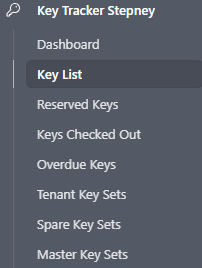
This process is run through Key Tracker in Air Table.
Signing keys out
Firstly - Check if the keys are reserved already. If so, follow as below.
How to issue a reserved key
Open the Key Tracker reserved page. Search if the property is listed there, if so, change the status to checked out and enter the date they were taken and due back.
If you can't find the key reserved, follow as below.
If a trade is here to collect a key, and it is not reserved,
Check for a work order in Property Me to confirm that work has been arranged. Ask the trade if the tenant is aware they are coming.
If there is no work order, call the Property Manager for authority to hand the keys out.
If the Property Manager does not answer, the keys will not be released, and the person will be advised that they need to contact the Property Manager direct to arrange an alternate time to collect the keys.
If authority to hand out keys has been granted, follow as below.
Step 1: Open the Key Tracker Key List page. Search via property address or key number.
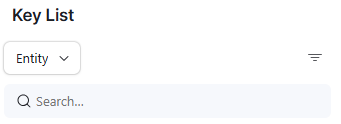
Step 2: To add a booking select the key/property you would like, then enter the following as below picture. Delete the last return date if it comes up. Change the status to Checked out and then complete the rest of the information being requested.
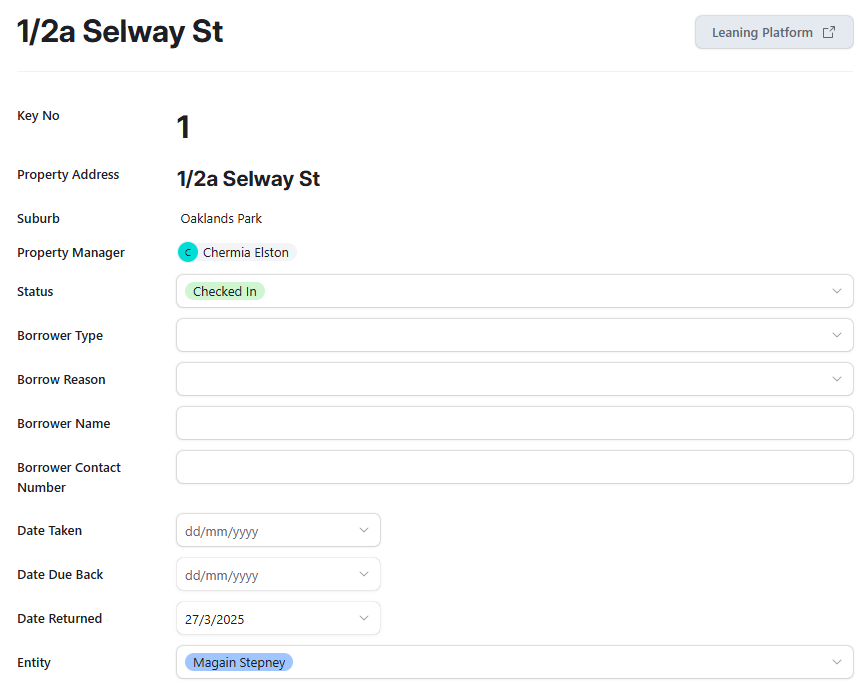
Step 3: This will automatically save.
Signing keys in
Step 1: Open the Key Tracker Key List page. Search via property address or key number. Enter the returned date. This will automatically change the status back to Checked In.
Step 2: This will automatically save.
You can also search via the Keys Checked Out page and then find the property/key and fill out the returned date there.