
For the full detailed process - please see the Trello card - Vacating Tenant
Create a Trello card
Add a vacate date to Property Tree
Step 1: Click onto the tenant profile
Step 2: Click on the Lease & Rent tab

and scroll down to “Vacate Information”.
Step 3: Click on the edit pencil to the right hand side of the screen
Step 4: Select the type of notice given:
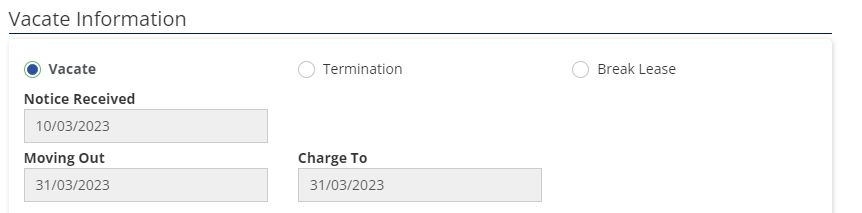
Vacate – if the tenant has given notice to end their fixed term tenancy or periodic tenancy
Termination – if the landlord has requested possession or not offering renewal of the lease
Lease Break – tenant will end their fixed term agreement before the end of the lease

Vacate:
Enter the date the notice was received, lease expiry date in “moving out” and in “charge to” fields. The description: (this is the reason why the tenant is vacating i.e. lease expiry, tenant purchased own home, landlord given notice)
Termination
Termination is used where notice has been given by the landlord or SACAT. Click on "termination" and enter the "termination date"
Lease break
In this case, the charge to date will also be the vacate date. Once a new tenant has been secured, we can invoice for rent compensation. This date will be changed to the day before the new tenancy starts or a maximum of one month after vacate.
Final inspection booking
The Property Facilitator will book in the final inspection date and invite the Property Manager. This does not mean they need to attend but if the Property Facilitator is unavailable, it will be the responsibility of the Property Manager to conduct the final. It is best practice to accept the invite as 'maybe' that was it's faded in your calendar so you are still aware it's booked in.
Cancellation of routine inspection
Check Property Tree as to the date for the next routine inspection date. If it is within 4 weeks of the vacate date, remove the routine inspection date in Property Tree.
Step 1: Select the property profile
Step 2: Go to the Inspections tab
Step 3: Scroll down to “Upcoming Inspections” and click on the X to the right-hand side

Sending vacate email to tenant
There are 5 email templates, all of which contain the same information with some minor changes.
These templates can be edited where required and instruction on how to do a mail merge is attached below.
Templates:
(Residential) Vacate > Tenant > Lease Not Being Renewed (a form 9 is to be sent also)
(Residential) Vacate > Tenant > Periodic (send a form 7 or 8 if the landlord has given notice)
(Residential) Vacate > Tenant > Periodic (tenant giving notice)
(Residential) Vacate > Tenant > Lease Expiry
(Residential) Vacate > Tenant > Lease Break
Creating a Form 9 /Form 7 or 8
These forms are created in REI forms through Property Tree
Step 1: Click into the tenant profile in Property Tree and click on the label "Integrations"

Step 2: Click on arrow at REI Forms Live

Step 3: Click on + on the right-hand side of the screen
Step 4: The first screen is "Select a Profile" Check the property and tenant is correct and click on next
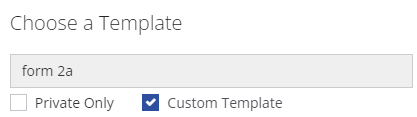
Step 5: The next screen is "Choose a Template" In the search field, type the title of the document you are wanting to create e.g. form 9, form 7 form 3. Make sure you tick "Custom Template" as these have some information already prefilled.
Step 6: Click "next"
Step 7: The final screen is "Finalise your Form". Check all details on the screen to make sure you have everything correct and tick "Pre-populate form using selected profile". Refer to example below.
Step 8: Click on "Create Form"
REI Form Live will open with a "Draft" of the form you are creating. Review the form ensuring the tenant's name and property address have pre-populated. Enter the information required e.g. dates
Make sure the "Service of Notice" is ticked as to the method served.
Step 9: Click on "Finalise" at the top left-hand corner of the screen to remove the watermark

then click "finalise' again.
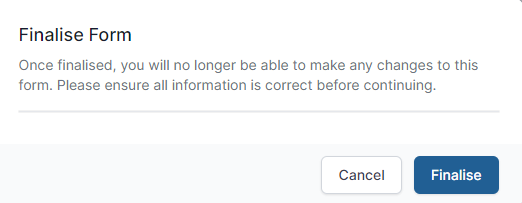
Step 10: The form can now be signed. To the right hand side of the screen, a window will pop up "REI Forms Live - Signing
Enter your name and email address (the mobile number is only to be put in if you want to alert the client to the document being sent and prompt them to obtain an access code to enable them to sign a document)
Click "next"
Step 11: Signing - Status - you will need to send this document to yourself to sign
Step 12: Go to emails and open the form - Click on "View & Sign form"
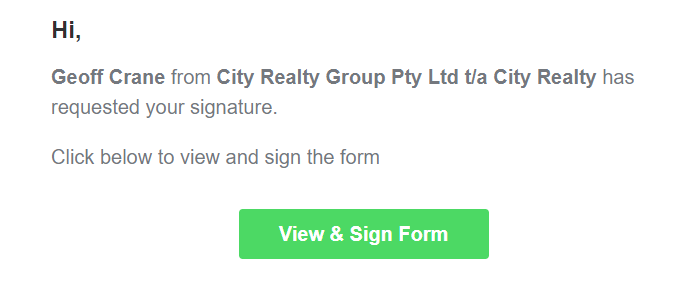
Step 13: Click on "Get Started" on the next screen. The document will open with a tab "sign". Click on that to direct you to the signature line and click on "Sign Here".
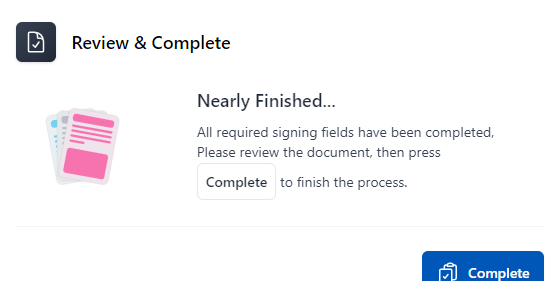
Step 14: Draw your signature an on the next screen "Review & Complete", click on Complete
Step 15: The document will be created as a PDF for downloading and attaching to your vacating email.
Advise the landlord
Best practice is to call your landlord and chat with them about their plans to relet. If you are unable to reach them immediately by phone, an email can be sent as a courtesy, to let them know their tenant is vacating and you will be back in touch soon.
Email template (Residential) Vacate > Owner > Lease expiry
Email template (Residential) Vacate > Owner > Lease break
Saving the key receipt
The key sheet should be saved in One Drive: Magain City Realty Documents > Properties > Current tenant folder as “key receipt” so it can easily be found by the team at reception when a tenant returns their keys.
If additional keys or remotes etc were provided during the tenancy, ensure that the separate key receipts are saved together as one document, so nothing is missed.
Sending the tenant a reminder
This is to be done 2 weeks prior to the tenant's vacate date. The email template is generic and shouldn't need to be edited.
Email template in Property Tree (Residential) Vacate > Tenant > Final inspection reminder
Confirm the tenant has vacated
This will be confirmed by return of the keys or an exception to that, is to call the tenant if the keys haven't been returned.
Keys returned
Reception will print out a copy of the original key receipt and tick off all keys returned and highlight any missing keys. Where keys are missing, the tenant will also be required to sign an agreement authorizing Magain City Realty to arrange for key cutting or replacement fobs/remotes at the tenant cost. A copy of these documents will be scanned and emailed to the Property Manager and Assistant Property Manager for review
Final inspection completed
The final inspection date will be in your calendar so it's as easy as either speaking with the Property Facilitator or checking Inspection Manager to see the status of the inspection.