
Remove tenant details from Inspection Manager
Why? If there is a new tenant in Property Tree which is showing as a “Prospect” or the ingoing inspection is not scheduled through Property Tree, it is possible the outgoing tenant’s details will continue to show on the report.
Step 1: Log into Inspection Manager
Step 2: Search the property
Step 3: Click on the edit pencil to the right-hand side of the screen
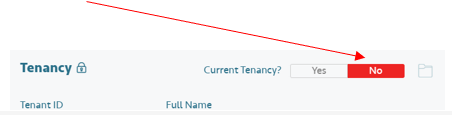
Step 4: On the right-hand side, the tenancy details will appear. Click on “no”
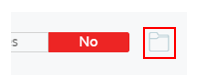
Step 5: Click on the folder next to “No”
Step 6: Archive confirmation message will appear. Click on Okay.
Step 7: Click on "Save Property"
Review final inspection report
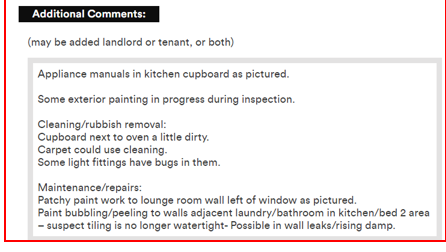
Abandoned Goods
Step 1: Scroll through the report comparing comments and photos of both the ingoing inspection and outgoing inspection report to determine whether any items listed need to be addressed by the tenant or the landlord.
Step 2: Close the inspection and download a copy to send to the tenant if there are issues to be addressed.
Step 3: Call the tenant prior to sending the report to discuss the issues found and advise that cleaners/trades will be attending to carry out the required work. If required, there are email templates you can use in Property Tree which can be edited if required. If there is further cleaning required, before sending your own cleaner, first check if the tenant had a professional cleaner already attend and then give that cleaner the opportunity to re attend. SACAT won't approve 2 cleaning charges if we don't give opportunity for their cleaner go back.
Bond Refund > Tenant > Final inspection completed
Step 4: Call the landlord to discuss the report and any issues to be addressed at the tenant's cost.
Step 5: Send the inspection report to the landlord
> Log onto Inspection Manager
> Search the property and locate the outgoing inspection report
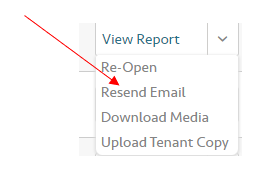
> From the drop-down arrow next to ‘review report’, select "Resend Email"
> Select the template to attach with the report. (There are 2 templates which contain different information and can be edited if required
(1) Outgoing inspection - no issues
(2) Outgoing inspections - issues found
Step 6: Issue work orders for any cleaning and/or repairs required through Bricks and Agent.
Preparing the tenancy final claims
TIP: As you are preparing the tenancy final claims, it is a good idea to list any costs which will be deducted from the bond on the Trello Card. This is helpful should anyone be assisting with the portfolio as the information is readily available if there is a query from landlord or tenant
(1) Rent arrears - check the tenant profile for any arrears owing.
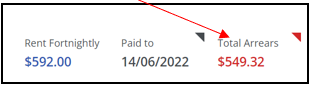
Click on the arrow to the right-hand corner will open a screen to show the breakdown of rent and invoice arrears. Remember, this is arrears only, so if there are invoices pending which are not yet overdue, you may also need to check the financials tab > outstanding invoices under the tenant profile.
(2) Water charges - Confirm what water charges are payable by the tenant.
Check if there are any outstanding invoices
Check to see the last charges invoiced and paid by the tenant to ascertain what needs to be charged to vacating date.
Calculating final water usage - find the meter reading and date of reading on the last SA Water invoice. The water meter reading for the end of tenancy will be found on the final inspection report (page 2). Use the "Magain City Realty Calculator" in One Drive and follow the guide to enter the information you have.
Calculating final water supply - the fee for water supply is a set figure per quarter, reviewed in July annually by SA Water. The periods for water supply are (01/01 to 31/03), (01/04 to 30/06), (01/07 to 30/9) & (01/10 to 31/12). If calculating water supply for a partial period, enter the start and end date for the current period and then allocate however many days as needed for the landlord to pay to calculate the water supply charge for the final period of tenancy.
Save the document as a PDF so this can be attached to the invoice in Property Tree.
(3) Lease break costs - use the "Magain City Realty Calculator" in One Drive and scroll across to "lease break costs".
Enter required information into the brown shaded cells. The spreadsheet is self explanatory and all information required can be found in Property Tree. If unsure on the letting fee, check the management agreement
(4) Rent differential - referred to a compensation claims on the spreadsheet.
Save the document as a PDF so this can be attached to the invoice in Property Tree.
Creating internal invoices
An invoice for each bond claim is to be created in Property Tree for receipting purposes when the bond refund is received from Consumer & Business Services. The only claim for which an invoice is not created is “rent”.
When entering the description for the invoice, all descriptions should be preceded by Bond Claim-
e.g. Bond claim – final water charges
Bond claim – lease break fees
(Refer to Tenancy Invoices - for instruction on how to create an invoice) Do not send
Any invoices for cleaning or repairs should be attached to Property Tree so they are easily accessible for future reference.
Sending the claim details to the tenant & owner
Email templates are in Property Tree. There are 4 templates available
(Residential) Bond refund > Tenant > Claims made
(Residential) Bond refund > Tenant > Full refund authorised
(Residential) Bond refund > Owner> Claims made
(Residential) Bond refund > Owner > Full refund authorised
When filling in the claim details, if you don't wish to itemise each claim (including rent owing), a good idea is to create an invoice statement and attach that to the claim email.
To create an invoice statement:
Log onto the tenant profile in Property Tree, select the Financial tab > outstanding invoices
Click on the invoice number and a list of all outstanding invoices will appear.

Scroll across to the right-hand side of the screen and click on Actions > Print Invoice. A PDF document will create.