Tenancy forms can be done via Property Tree. If you do not have the integrations tab set up, you can ask Geoff to set it up or create the Form directly through REI Forms Live website.
Step 1: From the tenancy profile, select the integrations tab

Step 2: Click on the arrow next to REI forms and then click on (+) to the right hand side

Step 3: Confirm the property address and then click "Next"
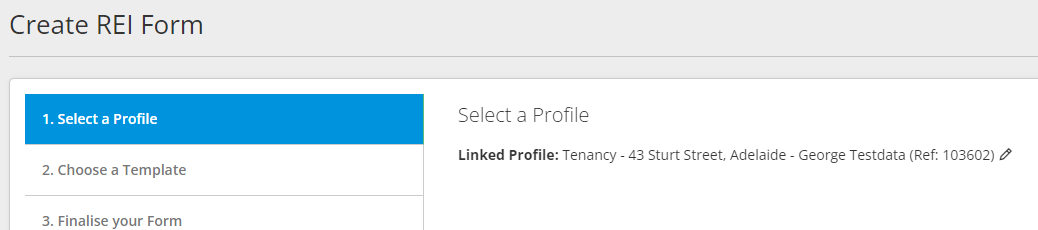
Step 4: In the search bar, type the name of the form you are seeking. Select the template to use (ensuring you click on the template which is ticked "Custom".
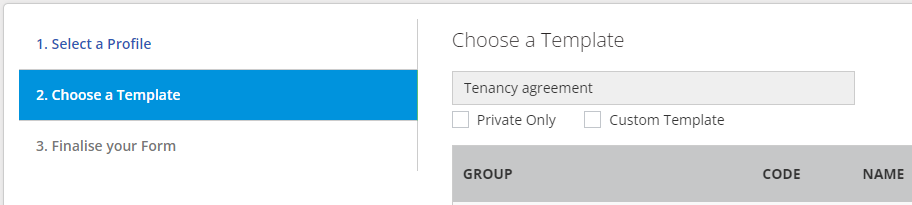
Click on "Next"
Step 5: Confirm that you have the correct property address and tenant.
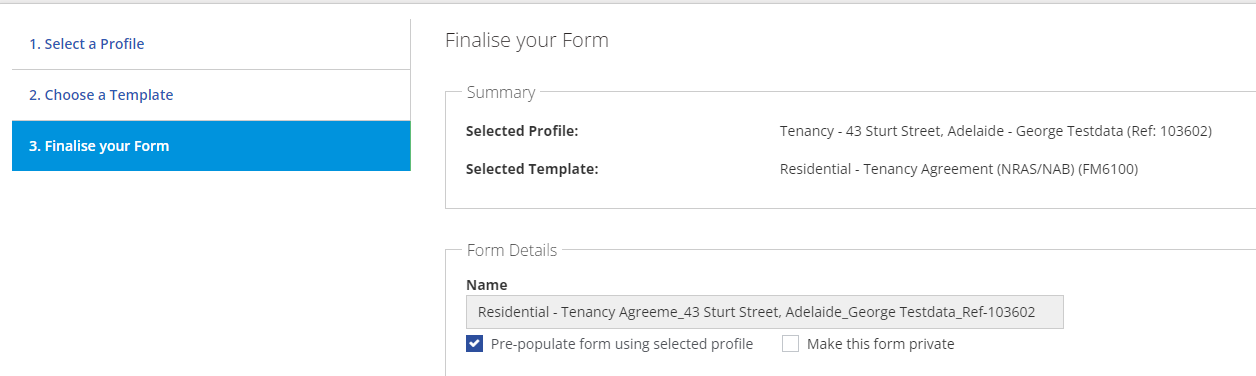
Click on "Create Form" and proceed
Step 6: The tenant details will pre-populate onto the document. Work through the document, filling out all of the information required to ensure your form is valid
Step 7: Once form has been filled in, click on "Finalise" at the top of the screen

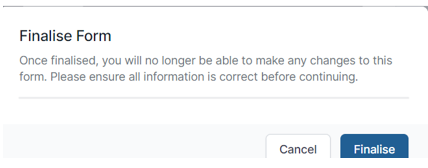
Step 8: Signing - enter names and email addresses of any persons required to sign the form. If you wish, as an added security measure, you can enter a mobile number which will provide the tenant with a code to use to be able to access the form for signing.
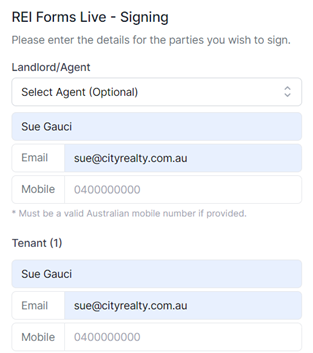
The document will be emailed for signing.
To view the status of the document
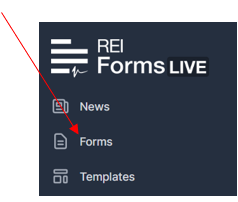
Step 1: Click on "Forms" on the panel to the left-hand side of the screen, and search the property address in the search bar at the top of the screen
Step 2: The status of the document will be seen
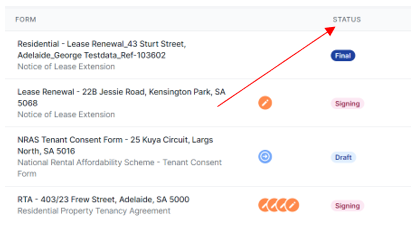
Step 3: For further information as to the status, click on the 3 dots to the right-hand side of the screen and click view
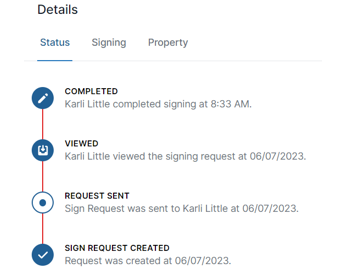
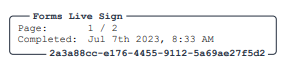
All documents which have been signed electronically, will have a stamp on the left hand top corner of the document as verification it is a true and legal document.
To resend the document for signing
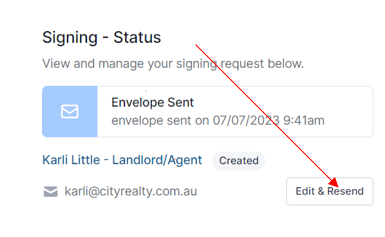
Step 1: Click on the 3 dots > view and click on "signing". Click on "Edit & Resend"