
Before sending the report to the landlord, BEST PRACTICE, is to review it first. In some cases, you may wish to edit it slightly or add your own comments.
Editing the report
Step 1: Log into Inspection Manager
Step 2: Search the property and click on "View Report" to the right hand side of the screen.
Step 3: While the inspection report is open, click on "Edit" at the top of the screen
Step 4: Make any changes you need to the report. You can also use the highlight option (blue pencil symbol at top of the report) if you want the Property Manager or Owner alerted to any particular comment/issue
Step 5: Click on "Done" (green symbol at the top of the report) to finalise
Sending the report to the landlord
Step 1: Open the report by clicking on “View Report”
Step 2: Click on “Close Inspection” at the top of the screen (black tab)
Step 3: Check the top banner to make sure:
A signature is attached to the report
The date of signature and date of inspection completed should be the same
Step 4: Click on “Email Now” to open the email template
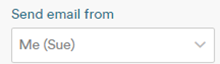
Step 5: The email is to be sent from the Property Manager
· To select the PM’s name, click on the drop down arrow under "Send Email From"
Step 6: Click on “Select Email Template” and select “Default Routine Template (This template can be edited if required)
Step 7: Click on "Send Email" and then "Close This Window"
The status of the inspection will change to "Closed"
Once closed off, Property Tree will automatically tentatively schedule another routine for 17 weeks' time.