
Subjects covered in this article.
CLONE A LISTING FROM AN EXISTING PROPERTY
CREATE A NEW LISTING AND PROPERTY
You will also need to refer to Magain City Realty's Advertising Policy to assist with writing the advertisement
CLONE A LISTING FROM AN EXISTING PROPERTY
STEP 1
Log onto Agent Box via individual log in account https://magainrealestate.agentboxcrm.com.au
STEP 2:
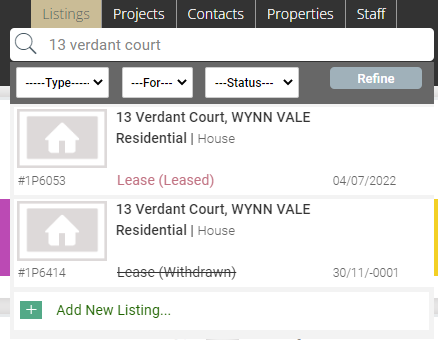
In the search bar at the top, select listings and type in the property address on the search bar at the top of the page.
STEP 3:
Click on the leased property to display the details.
STEP 4:
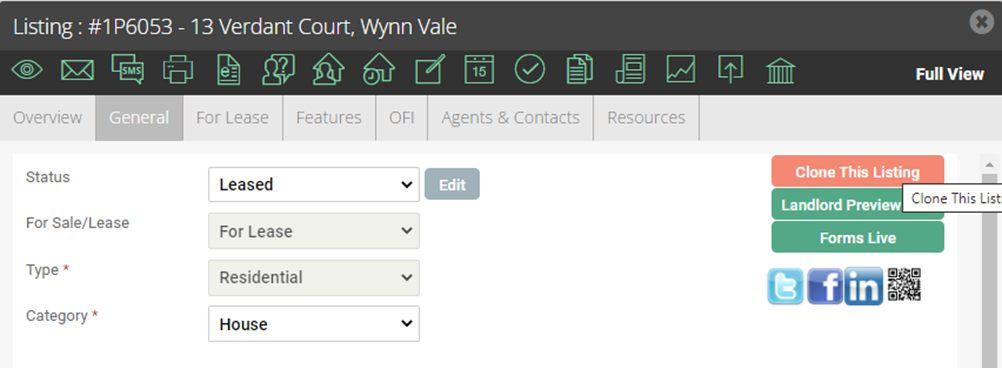
When viewing the property, click on the 'General' tab along the top menu and select clone.
STEP 5:
Select 'For Lease' from the pop up menu and confirm all other details are accurate.
NOTE: Don't worry about the Agents and Contacts as these can be updated later)

STEP 6:
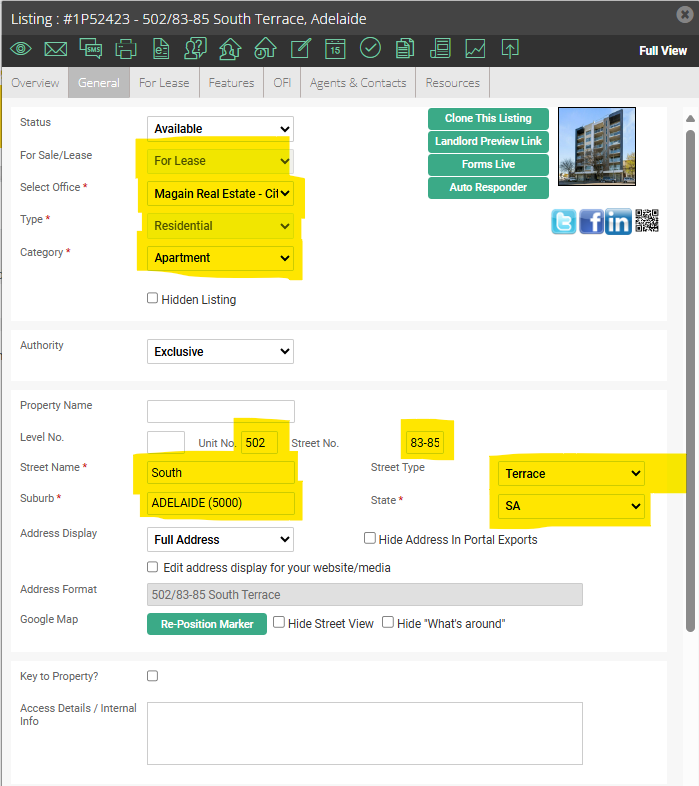
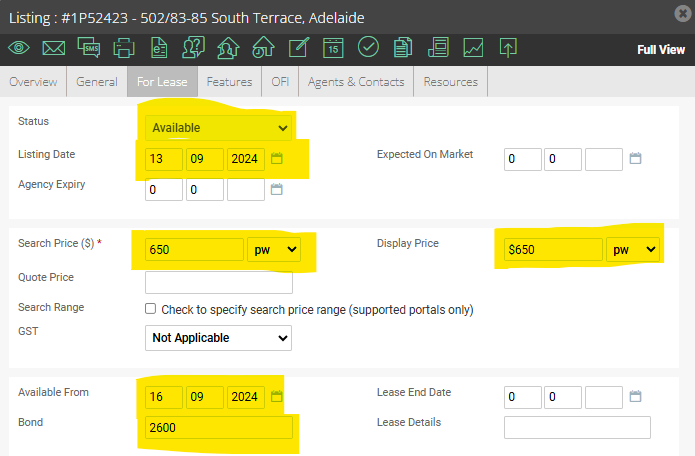
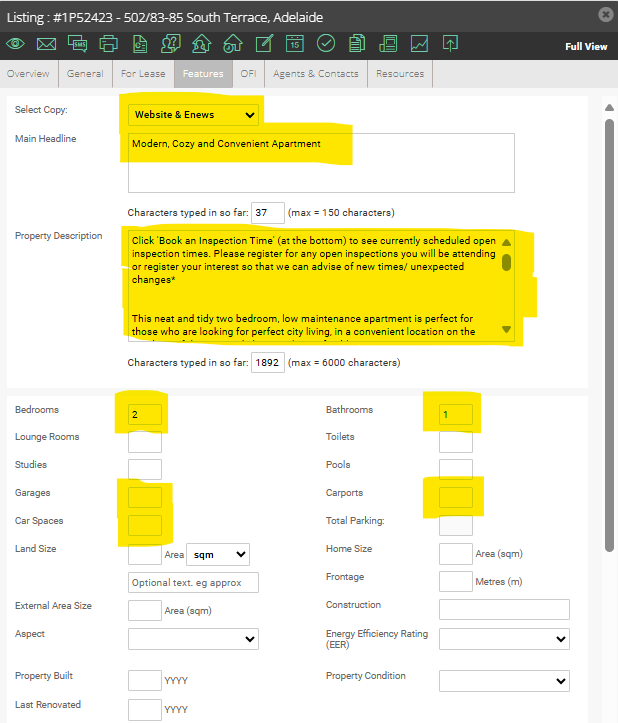
You will now have a new listing for the property. You will need to review the entire listing and every tab for the property to ensure that it is updated to reflect the new listing. Please check over all sections marked yellow. Disregard the other sections.

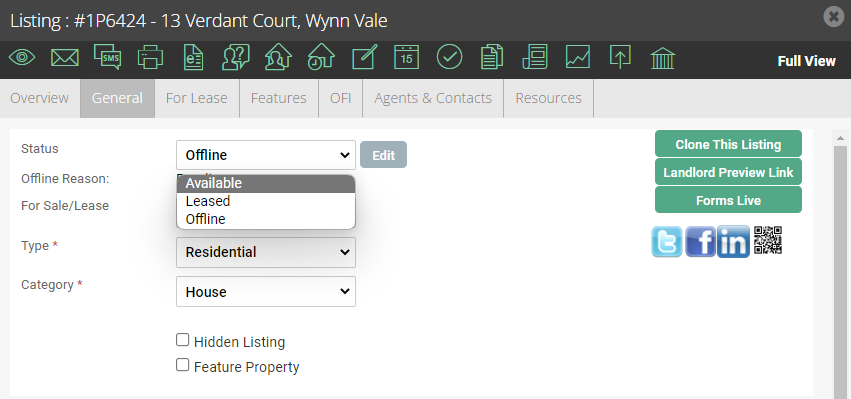
General - Put the Status as Offline until you complete/review the listing.
For Lease - Always use the same format as below in regard to $'s, pw.
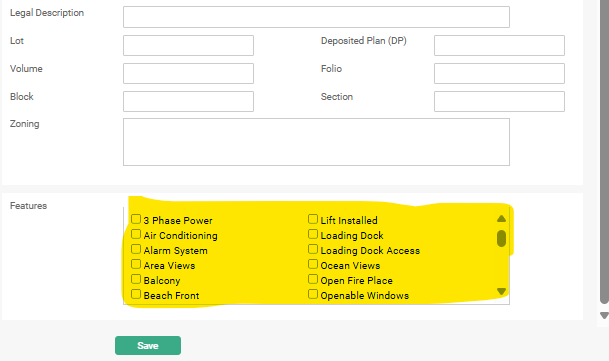
Features - The Main Headline just needs to be a few words. See the Advertising Policy listed above for the correct format. You can also select any applicable features from the bottom list.
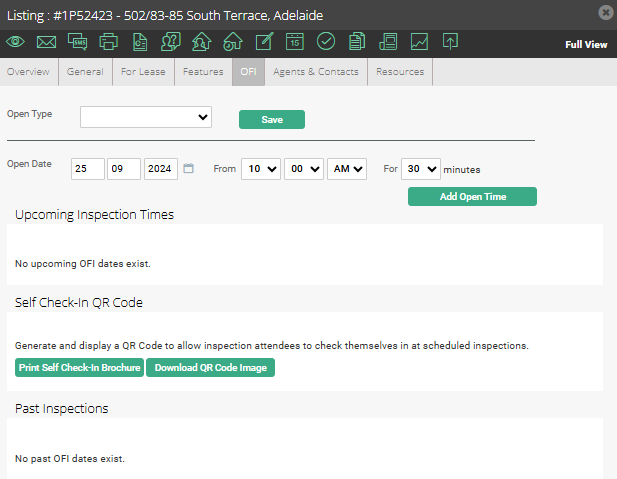
OFI - Open For Inspection - Do not fill out anything on this page. All of our open inspections are managed directly through Inspect Real Estate and will sync up with the advertisement.
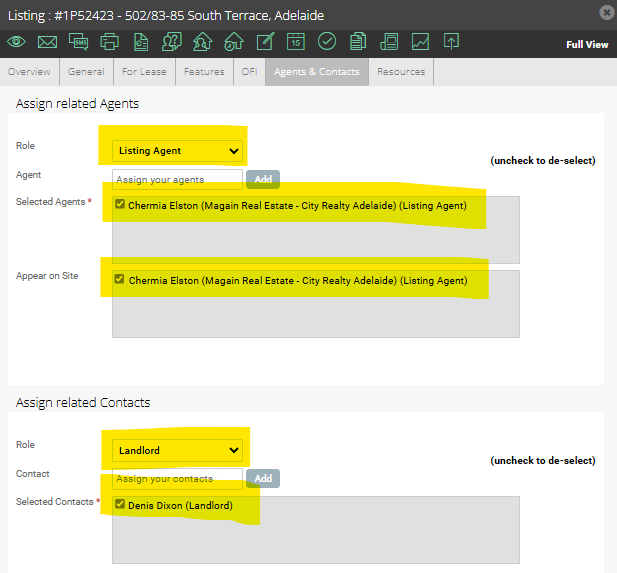
Agents & Contacts - Select yourself as the role of the Listing Agent. You will also need to add in the landlord. If you type their name into the contact box and their name doesn't automatically come up, you will need to add it in. On the next page you will just need to add in their name, email, mobile number and contact source.
Resources - Add up to 20 photos under Property Photos tab. Please ensure they are all landscape. You can also put the Floorplan into the Floorplan tab. Under the Documents tab you will need to upload a copy of the Management Agreement. The property will not list without a Management Agreement.
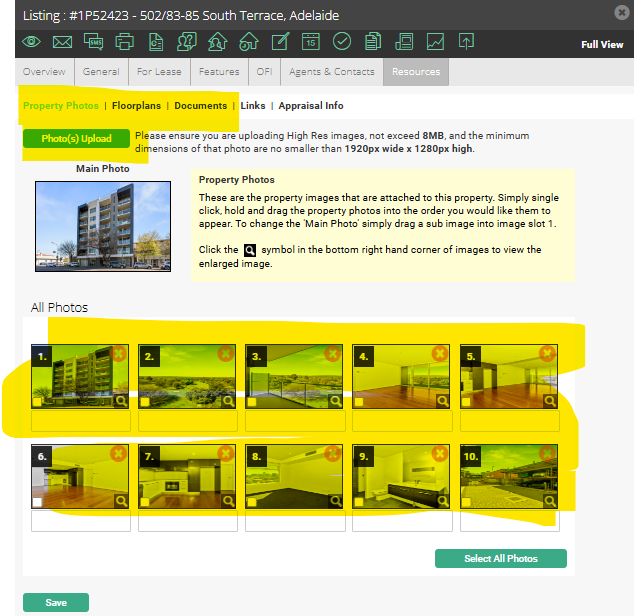
General - Go back to the General tab to select the following portals Put the Status as Offline until you complete/review the listing.
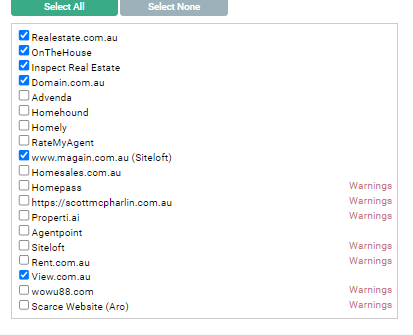
Put the Status as Offline until you complete/review the listing.
STEP 7: It is best practice to then review your listing to make sure it looks good, no spelling, grammar errors etc. To do this click the eye icon to bring up a preview page.

STEP 8:
To make the listing live on the relevant portals you need to navigate to the 'General' tab and select 'Available' from the status.
CREATE A NEW LISTING AND PROPERTY
STEP 1
Log onto Agent Box https://magainrealestate.agentboxcrm.com.au
STEP 2:
In the search bar at the top, select listings and type in the property address on the search bar at the top of the page. If there is a previous listing, follow the steps above on how to clone a property/listing. If the listing does not come up, select + Add New Listing at the bottom of the list.
STEP 3:
Follow the process above from Step 6 in regard to how to complete the listing.