
This process is run through Key Tracker on Air Table.
All keys that are to be collected must be reserved in key automate prior to the trade, tenant, owner etc. coming into the office to collect the keys. If the keys are not reserved the reception desk will attempt to contact you to get approval to release the keys. If you do not answer your phone and there is no work order in Property Me the keys will not be released and the person will be advised that they need to contact you direct to arrange an alternate time to collect the keys.
How to reserve a key
Step 1: Open the Key Tracker Key List page. Search for a key via property address or key number.
Step 2: To reserve a key change the status to Reserved and enter in the details for the person collecting the key. Enter the date taken as the date they are expected to get the keys.
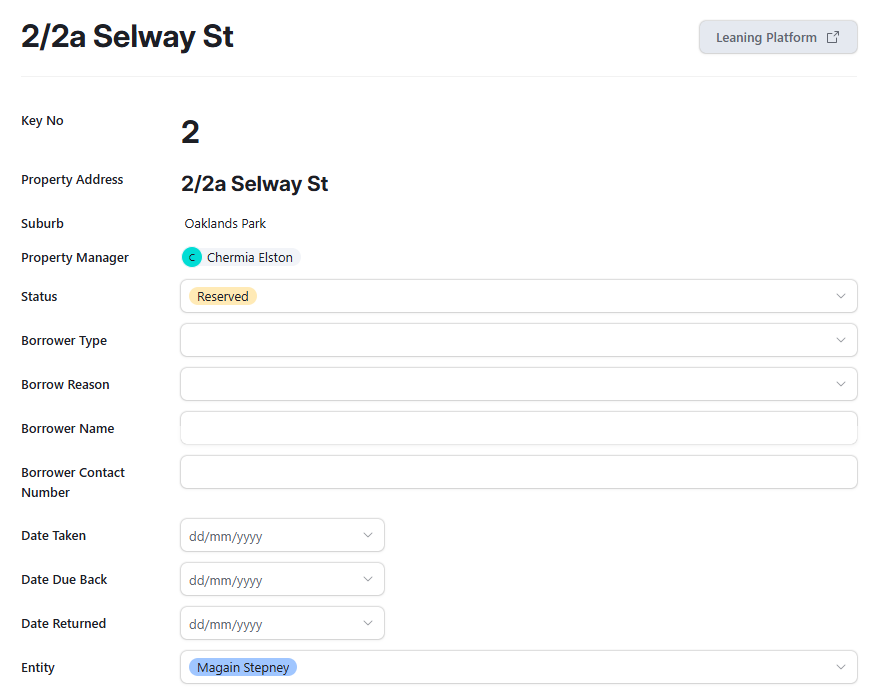
Step 3: This will automatically save.
How to issue a reserved key
Step 1: Open the Key Tracker Reserved Keys page. This will show all reserved keys. Find the key you want and then change the status to Checked Out and update the Date Taken section if needed and the Date Due back section.
Step 2: This will automatically save.