All open inspections are scheduled and managed through IRE (Inspect Real Estate)
Scheduling an Open Inspection
Step 1: Log into IRE (Inspect Real Estate)
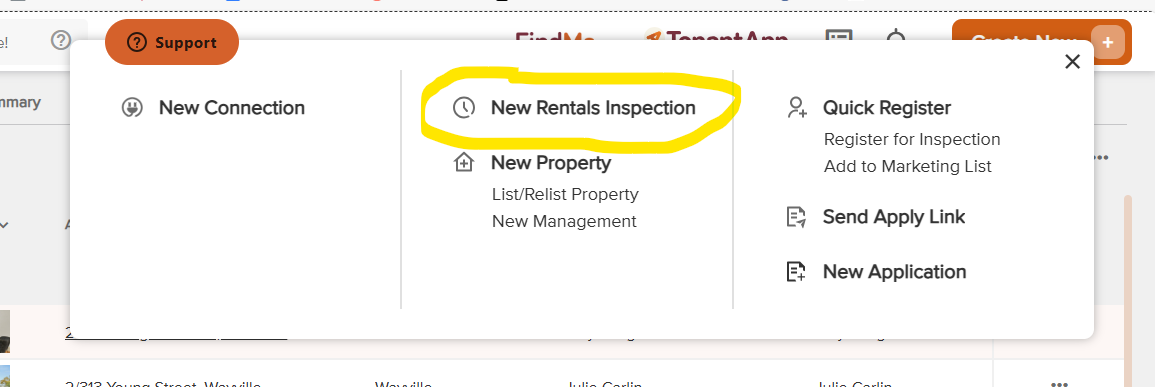
Step 2: On the top right hand corner click on the orange box "Create New"

Step 3: Click on "New Rentals Inspection"
Step 4: Add the details as per the example below
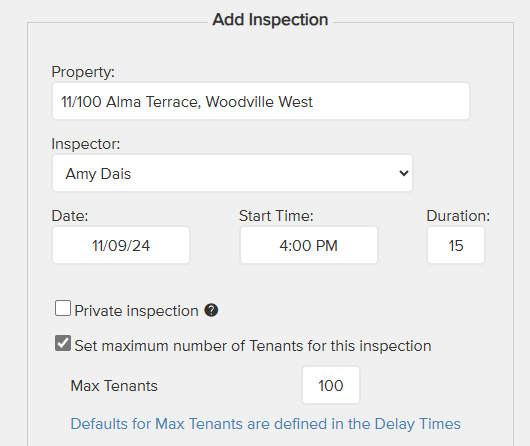
Step 7: If you want the option of putting a cap on the number of attendants, tick and set the maximum number of attendees.

Step 8: Click 'Save and Close' in the middle at the top

Once this process has been done, any persons who have registered to attend the open, will receive a text or email message to advise of the date and time.
Check for Open Inspection times or if someone has registered
Step 1: From IRE Letting tab, click on the "Inspections" tab. A list of properties which have open inspections schedule are listed.
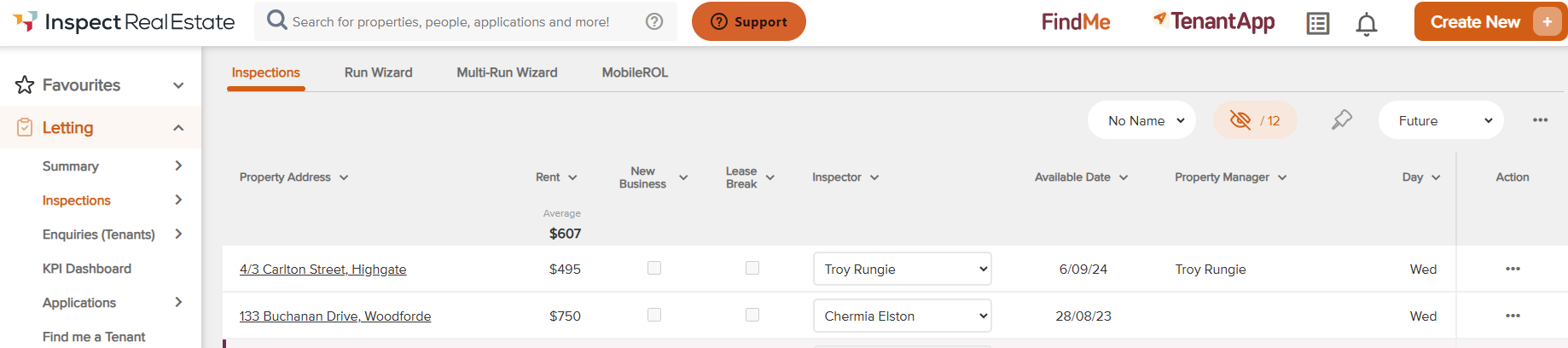
BEST PRACTICE: As we prefer to keep a record of numbers of persons attending an inspection, do not give out the date and time but ask the tenant to register for attendance. Also, by registering, if there are any changes made to dates or times, they will be advised.
If the enquirer wants to know whether they have already registered, scroll across to the tenant's column and click on the tenants' name. This will bring up another screen where all persons registered will have their names listed.
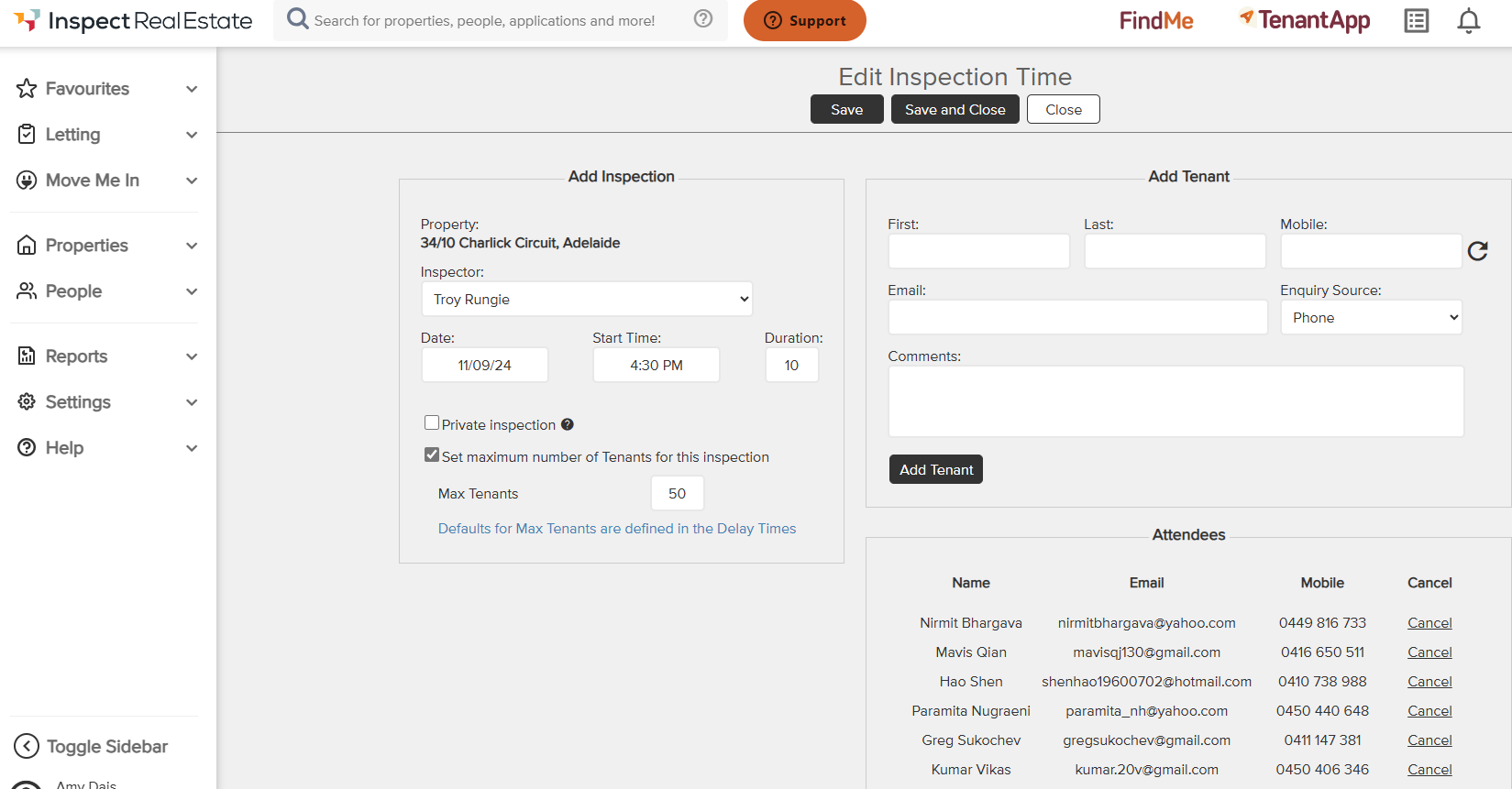
Register a name
On the page above, you can also register a tenant for the open inspection in the 'Add Tenant' box.
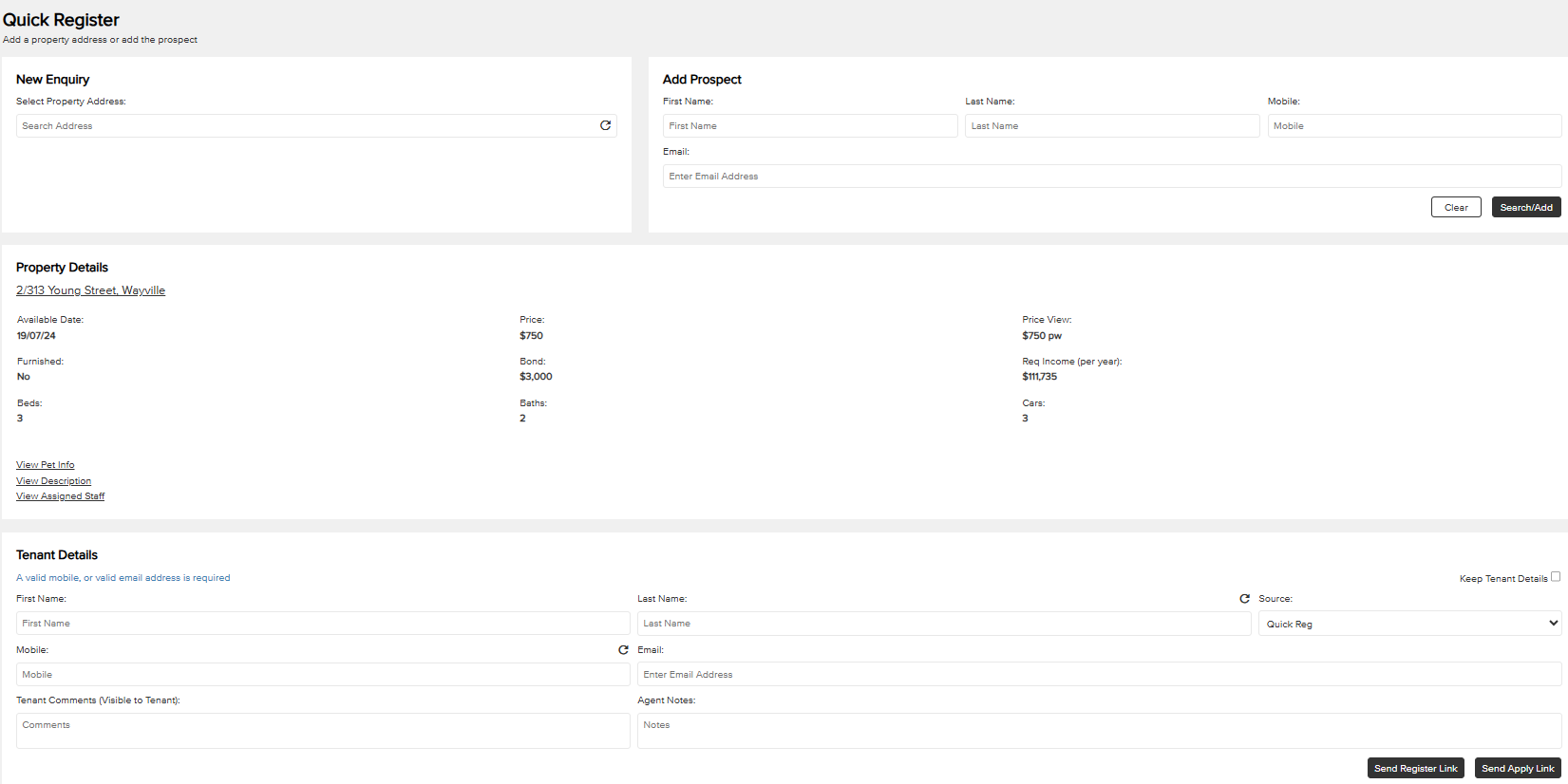
Another way to register a tenant is to go to the 'Create New' orange box in the top right hand corner, and click on 'Register for Inspection"

If there is no current inspection time available, you can enter in the property address, scroll down to Tenant Details and enter in the tenant details and click on 'Send Register Link'. They will then be added to the system and will notified when the next inspection is booked.
Step 1: From IRE Letting tab, click on the "Inspections" tab. A list of properties which have open inspections schedule are listed.
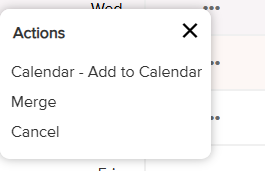
Step 2: Find the property, go to the far right hand side of the screen and click on the 3 dots in the 'Action' column. Click on Cancel. Any persons already registered to attend the open inspection, will receive a text message/email to advise that the inspection has been cancelled.