
Magain City Realty use https://cms.inspectionmanager.com.au/ to document any inspections carried out.
It is available on IOS and Android
https://apps.apple.com/au/app/im-plus/id968613544
https://play.google.com/store/apps/details?id=com.insight.implus&hl=en_US&gl=US
Creating a pending inspection
This can be done through either Property Tree or Inspection Manager.
To schedule an inspection in Inspection Manager
Step 1: Log into inspection manager
Step 2: Search property address you are conducting ingoing report for.
Step 3: On right hand side click
Step 4: Click on "Add a New Inspection"
Step 5: Fill out details
Inspector name: Who is conducting inspection
Type: Ingoing
Date: Date inspection is to be done
Time : this does not need to be changed

If this is a final inspection, it is recommended that all photos and comments be rolled over so they can be checked if there is a query on cleaning or damages. To do this, select the "last inspection date" (this would be the ingoing report) and then highlight the 3 boxes next to it.
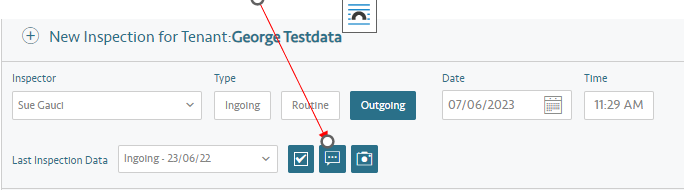
Step 6: Click on "Add"
To schedule an inspection in Property Tree
Step 1: Search the property in Property Tree
Step 2: Highlight the tenant profile
Step 3: Click on "Inspection" tab
Step 4: Click on + to the right-hand side of the screen
Step 5: Add the inspection details as follows (inspection type will be outgoing or ingoing)

Step 6: Click on "save"
This inspection will then sync over to Inspection Manager (generally overnight). Once this has been synced, you can delete the inspection in Property Tree
Report layout
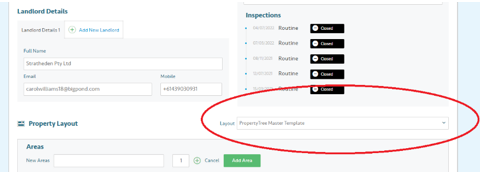
The “Property Tree Master Template” should be used for all new ingoing inspection reports.
The standard template ‘Property Tree Master Template’ has a basic layout covering almost all areas/items/fixtures with the ability to add property specific fixtures/fittings and extra rooms containing the standard areas/items.
Reports in the past may have been done against a different layout so the final can be done against the original report. All attempts should be made to use the master template for new ingoings as it contains all areas/items required and can easily add new rooms/areas containing the appropriate text.
To select the layout
Search the property in the property tab
Click on “View Inspections”
Click on the edit pencil
Scroll down to the bottom of the page until you find property layout and select “Property Tree Master Template”
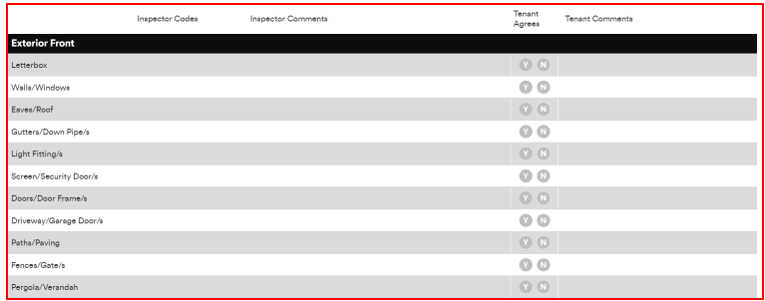
If you were to add an extra bedroom to a report- it would already contain the standard items:
Conducting the inspection
Link to Inspection Manager guide 4. Conducting Inspections | Inspection Manager (elevio.help)
Codes used to report on areas/items are condition, cleanliness, function. A code must be recorded against each item

The report should be listed by the area or room denoting conditions of items or fixtures within the area/room
What could go wrong?
On occasion, there has been a delay in preparing the property for tenancy with areas not ready or not of reasonable cleanliness. In this case the Property Manager should be contacted immediately and all efforts made to have the property brought up to standard and or made accessible for a re-organised inspection. Failing this happening, the report should be completed as best possible making notes of inaccessible areas.
Should an area/fixture be missing from the report/not documented, it may affect potential claims from the bond to rectify cleanliness/damage.
Reviewing The Report
Step 1: Upon returning to the office, sync the report to Inspection Manager.
Step 2: Look through the report to make sure all comments and photos have uploaded.
Furnished Properties
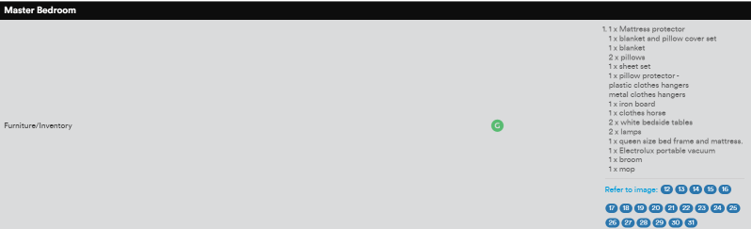
An extra area to list inventory items per room or area needs to be created. All need to be documented and photographed including their condition and state of cleanliness
i.e. lounge suite, television, wall art, cutlery and utensils:
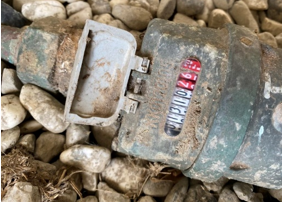
Water meters
A reading is required to recover costs from tenants. Be sure to locate the water meter and denote/photograph the reading
Finalising the inspection report
Step 1: Follow the same requirements as an ingoing inspection.
Step 2: Review the report. Upon returning to the office, sync the report.
Step 3: Make sure all comments and photos have synced correctly
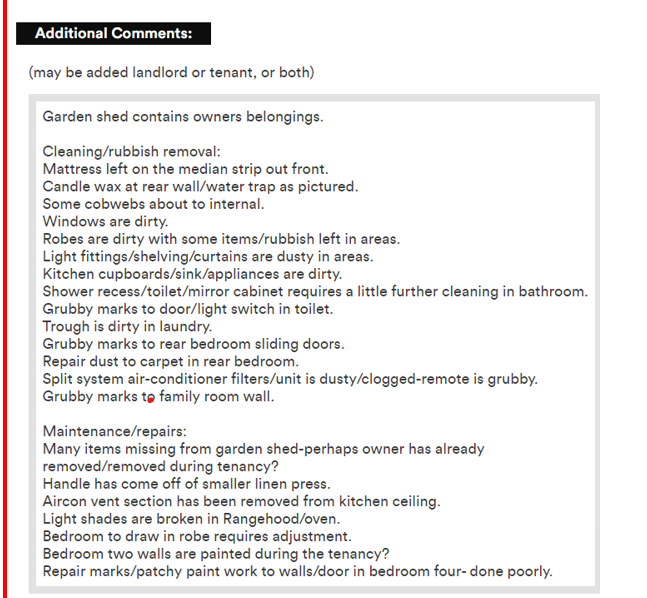
Step 4: A list of all areas needing attention are to be listed in the "Additional Comments" box on the report
Step 5: Advise the Property Manager, the report is ready for review.